

How to build an autonomous AI agent like OpenClaw (from scratch)


This is a guest post by Dr. Ashish Bamania. He’s an AI engineer and author of multiple newsletters including Into AI and Into Quantum.
OpenClaw is one of the craziest AI tools launched this year. It became so popular that people started hoarding Mac minis to run it, and its founder, Peter Steinberger, was hired by OpenAI.
If you haven’t yet heard of it, OpenClaw is a free and open-source autonomous AI agent that can complete tasks for you. It can read your inbox, send emails, manage your calendar, and check you in for flights, all from WhatsApp, Telegram, or any chat app that you already use. (That’s how the official website describes it.)
A large audience believes that OpenClaw could be AGI. This is one of the reasons (besides my genuine curiosity about disassembling its components) why I decided to rebuild a simple version of it and teach you everything from scratch.
Let’s build “Tiny-Openclaw”!
What Are We Building?
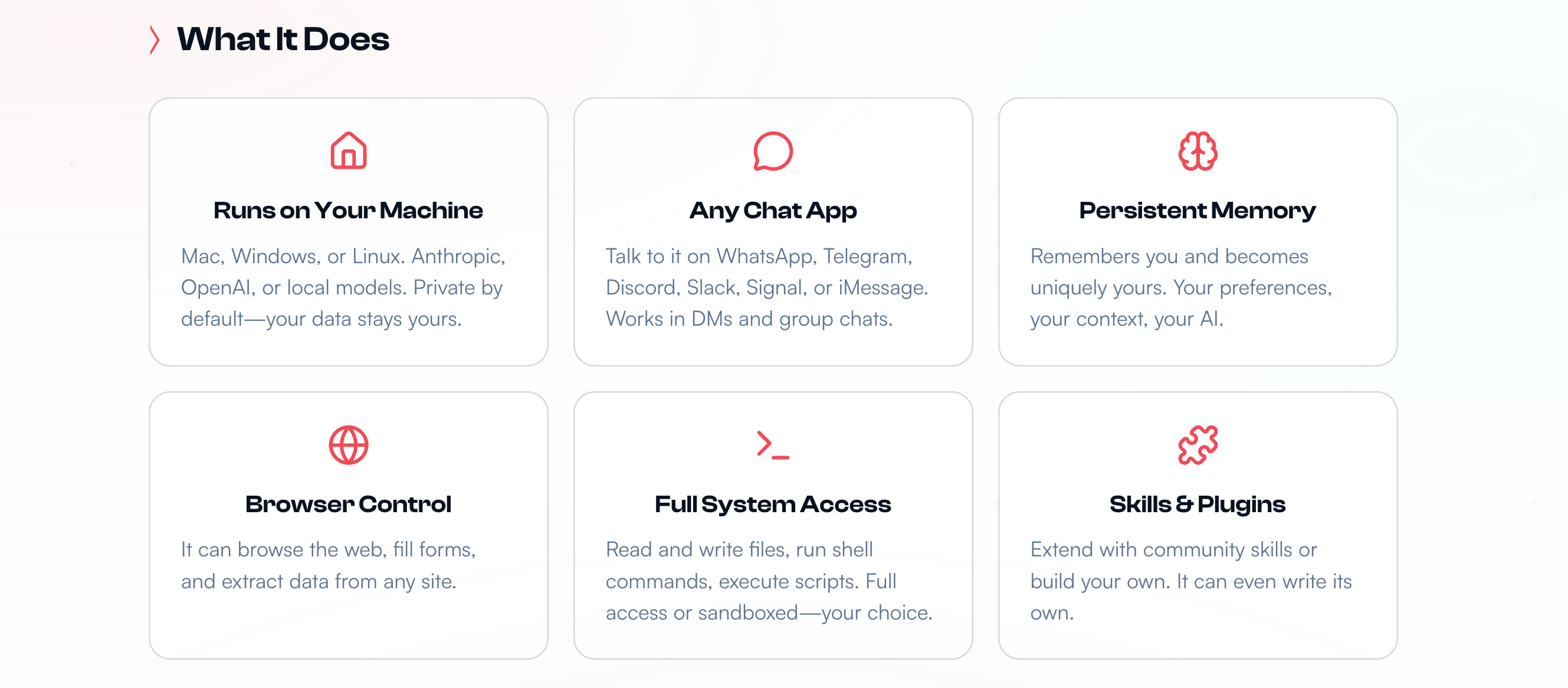
Before we begin, we need to know what the real OpenClaw can do.
It can run on any Mac/ Windows/ Linux machine and use proprietary or local LLMs.
One can talk to it using any chat app.
It remembers your conversations and preferences (this means that it has persistent memory).
It can browse the internet, fill forms, and extract data from websites.
It has full access to all the files on your computer.
It can use Skills (either built by you or the community), which are simply bundles of instructions, scripts, and resources that help an AI agent to complete a specific task.
Similarly, our tiny version of OpenClaw, called “Tiny-OpenClaw”:
Runs on a Mac/ Windows/ Linux machine
Can browse the internet, fill forms, and gather data from websites
Uses Skills
Has persistent memory
One can use Telegram to communicate with it
Tiny-OpenClaw does not have full system access on a machine, as it poses significant security risks, and this tutorial is not intended for creating an AI bot for production use.
Components That Make Up Tiny-OpenClaw
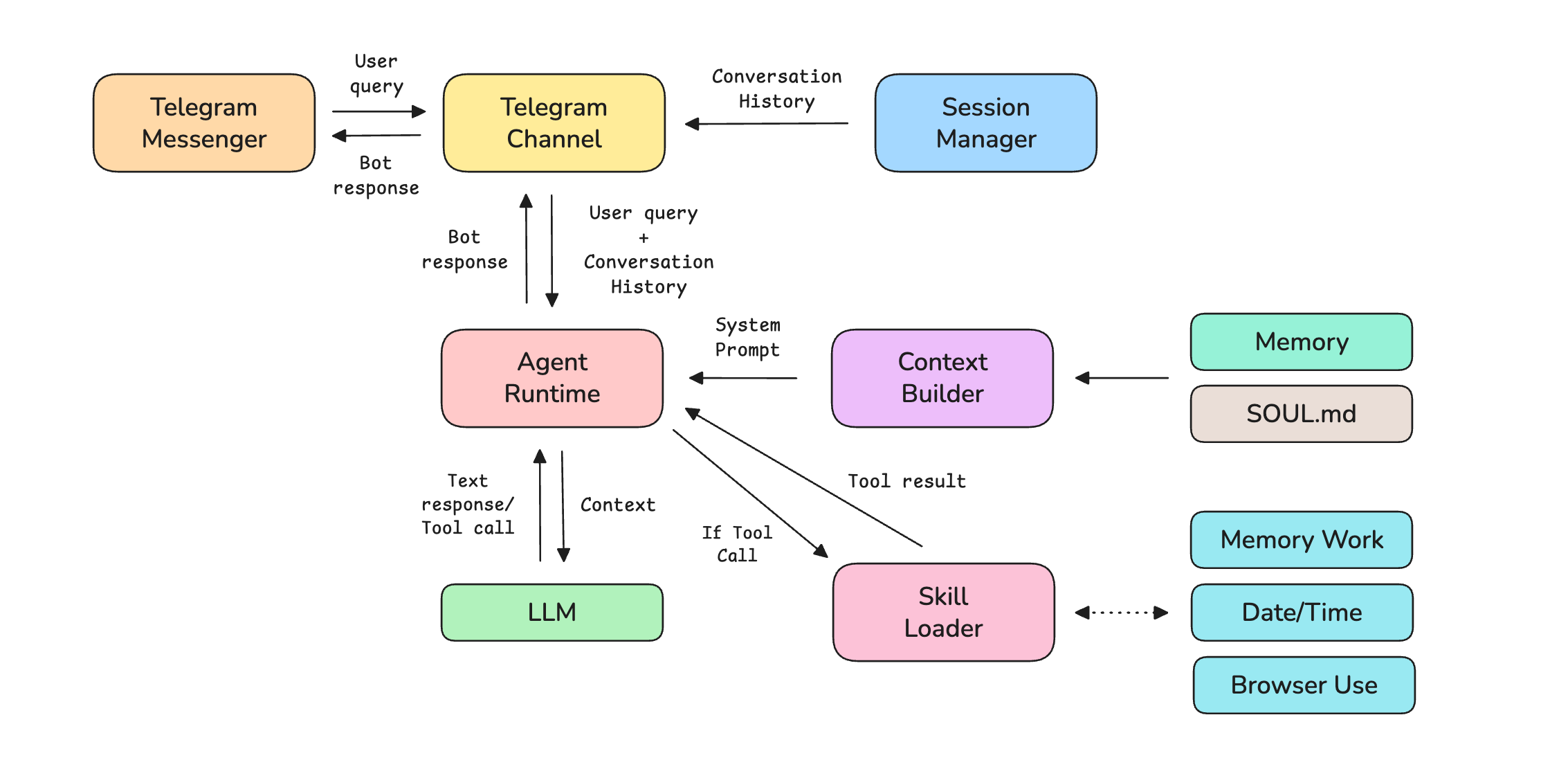
Before we start coding, let’s understand the 8 components that make up Tiny-OpenClaw.
Telegram Channel: This is an adapter specific to the messaging platform that translates messages from the platform’s format to a standard format that OpenClaw can work with.
Session Manager: This manages separate sessions and conversation histories per user.
Agent runtime: This is a loop that sends prompt and context to an LLM agent, runs tools if needed, and returns a final answer.
Memory: This is the storage that helps persist a user’s data across different chat sessions.
SOUL.md: This markdown file defines the agent’s personality and operating rules.
Skills: These are folders containing instructions, scripts, and resources to help complete a specific task.
Skills loader: This looks for the available Skills at startup, reads each Skill’s description and tools, and routes tool calls from the LLM to the right handler.
Context builder: This combines the following and returns context for the LLM:
SOUL.mdSkill descriptions
Saved memory about the user
Current time
We will build these one by one.
The following diagram shows how these components connect together.
Before we start, I want to introduce you to my book, LLMs In 100 Images, which is a collection of 100 easy-to-follow visuals that explain the most important concepts you need to master to understand LLMs today.
Let’s move forward!
1. Creating the Project
Start by typing the following bash commands in your terminal to create the scaffold for the project.
# Create project folder
mkdir tiny-openclaw && cd tiny-openclaw

# Create folders for skills and frontend
mkdir -p skills/datetime skills/memory_work skills/browser_use

# Create core component files
touch main.py agent_runtime.py context_builder.py session_manager.py telegram_channel.py memory_store.py skill_loader.py SOUL.md .env

# Create datetime skill files
touch skills/datetime/SKILL.md skills/datetime/handler.py

# Create memory note skill files
touch skills/memory_work/SKILL.md skills/memory_work/handler.py

# Create Browser use skill files
touch skills/browser_use/SKILL.md skills/browser_use/handler.py
Next, create a virtual environment and install all the dependencies using uv as follows.
# Create and activate virtual environment
uv venv
source .venv/bin/activate

# Install dependencies with uv
uv pip install httpx python-dotenv python-telegram-bot playwright

# Download the Chromium browser binary that Playwright needs for the Browser use skill
playwright install chromium
2. Building Memory
Tiny-OpenClaw’s memory is a simple key-value store (dictionary) that persists data as a JSON file on disk. It is used to store user preferences and facts for the LLM agent to retrieve later.
(Feel free to use an in-memory database like Redis if you prefer it over the simple dictionary we are using here.)
# ./memory_store.py

import json
import os

# Key-value store
class Memory:
    def __init__(self, path="MEMORY.json"):
        self.path = path

        # Load existing memory from disk if available
        if os.path.exists(path):
            with open(path) as f:
                self._data = json.load(f)
        else:
            self._data = {} # Dictionary used to store user memories

    # Set a key-value pair
    def set(self, key, value):
        self._data[key] = value
        self._save()

    # Get a value by key
    def get(self, key):
        return self._data.get(key)

    # Get all keys
    def keys(self):
        return list(self._data.keys())

    # Save memory to disk
    def _save(self):
        with open(self.path, "w") as f:
            json.dump(self._data, f, indent=2, default=str)
3. Building the Session Manager
The Session manager’s job is to create and track a separate conversation history for each user. It works like this:
When a user connects to Tiny-Openclaw, it creates a session using their client ID and channel (which could look like
telegram:123) to keep their conversations separate.All messages (from the user and the LLM assistant) are added to that session’s history. This history is sent to the LLM as context on every turn, so that it knows what the user has been chatting about.
Sessions are saved to disk as a JSON file (
SESSIONS.json) so that the conversations aren’t lost when the system restarts.
# ./session_manager.py

import json
import os
import time

class SessionManager:
    def __init__(self, path="SESSIONS.json"):
        self.path = path

        # Load sessions from the disk if available
        if os.path.exists(path):
            with open(path) as f:
                self.sessions = json.load(f)
            print(f" Restored previous session(s) from disk!")
        else:
            self.sessions = {}

    # Find an existing session or create a new one
    def get_or_create_session(self, client_id, channel):
        session_id = f"{channel}:{client_id}"

        if session_id not in self.sessions:
            self.sessions[session_id] = {
                "client_id": client_id,
                "channel": channel,
                "created_at": time.time(),
                "history": [],
            }

        return session_id

    # Append a message from user or LLM to the session history
    def add_message(self, session_id, message):
        session = self.sessions.get(session_id)
        if session:
            session["history"].append(message)
            self._save()

    # Return the full conversation history for a session to send to LLM as context on every turn
    def get_history(self, session_id):
        session = self.sessions.get(session_id)
        return session["history"] if session else []

    # Save sessions to disk
    def _save(self):
        with open(self.path, "w") as f:
            json.dump(self.sessions, f, indent=2, default=str)
A sample SESSION.json file is shown below to show what it stores.
{
  "telegram:1191237804": {
    "client_id": "1191237804",
    "channel": "telegram",
    "created_at": 1774270494.7631621,
    "history": [
      {
        "role": "user",
        "content": "Hi!",
        "timestamp": 1774270494.7631638
      },
      {
        "role": "assistant",
        "content": "Hello! I'm your personal AI assistant. What can I help you with today?",
        "timestamp": 1774270497.646961
      },
      {
        "role": "user",
        "content": "Remember my name is ashish",
        "timestamp": 1774270609.259111
      },
      {
        "role": "assistant",
        "content": "Perfect! I've saved your name as Ashish in my memory. I'll remember this for future conversations. Nice to meet you, Ashish!",
        "timestamp": 1774270611.7315981
      }
    ]
  }
}
4. Setting Up Skills
Skills give Tiny-OpenClaw the ability to solve specific tasks. Each Skill is implemented as a folder with two files:
SKILL.md: A Markdown file that contains the name and short description of the Skill. These are appended to the System prompt so the LLM knows this Skill exists and when to use it.
handler.py: The code that executes when the LLM decides to use a particular Skill
What’s interesting is that instead of hardcoding the logic, we let Tiny-OpenClaw know which Skills it has access to and let it figure out on its own whether to use them or not during a conversation turn.
We will be building three Skills for this project as follows:
Date/Time: Helps find the current date and time
Memory work: Helps save personal notes about a user in memory
Browser Use: Helps visit websites, extracts text content, clicks elements, and fills forms.
1. Date/Time Skill
Here is the skills/datetime/SKILL.md file for this Skill.
---
name: datetime
description: Get the current date and time.
---
The handler.py for this Skill is as follows.
# ./skills/datetime/handler.py

from datetime import datetime, timezone

# Tool definition to tell the agent about the available 'get_current_datetime' tool
tools = [
    {
        "name": "get_current_datetime",
        "description": "Get the current date and time.",
        "parameters": {
            "type": "object",
            "properties": {},
            "required": [],
        },
    }
]

# Function called when the agent invokes this tool
async def execute(tool_name, tool_input, context):
    if tool_name == "get_current_datetime":
        # Get the current date and time
        now = datetime.now(timezone.utc)

        # Return a human-readable format
        return {
            "readable": now.strftime("%A, %B %d, %Y %I:%M:%S %p UTC"),
        }

    return {"error": f"Unknown tool: {tool_name}"}
2. Memory work Skill
Here is the skills/memory_work/SKILL.md file for this Skill.
---
name: memory_work
description: Save a note to the user’s personal memory.
---
The handler.py for this Skill is as follows.
# ./skills/memory_work/handler.py

# Tool definition to tell the agent about the available 'save_note' tool
tools = [
    {
        "name": "save_note",
        "description": "Save a note or fact about the user to memory.",
        "parameters": {
            "type": "object",
            "properties": {
                "key": {"type": "string", "description": "Short descriptive key"},
                "content": {"type": "string", "description": "Note content"},
            },
            "required": ["key", "content"],
        },
    },
]

# Function called when the agent invokes this tool
async def execute(tool_name, tool_input, context):
    memory = context["memory"]

    if tool_name == "save_note":
        # Save to memory
        memory.set(f"note:{tool_input['key']}", {
            "content": tool_input["content"],
        })

        return {"success": True, "key": tool_input["key"]}

    return {"error": f"Unknown tool: {tool_name}"}
3. Browser Use Skill
Here is the skills/browser_use/SKILL.md file for this Skill.
---
name: browser_use
description: Browse the web, extract text from webpages, click elements, and fill and submit forms. Use when the user asks to visit a website, read a page, or interact with web content.
---
The handler.py for this Skill uses Playwright, a library for browser automation that gives Tiny-OpenClaw the ability to work with webpages.
# ./skills/browser_use/handler.py

from playwright.async_api import async_playwright

# Global browser state that is initialized on first tool call
_browser = None
_page = None

async def _get_page():
    global _browser, _page

    # If a browser and page are already active, reuse them instead of reopening
    if _browser and _page:
        return _page

    # Start Playwright
    pw = await async_playwright().start()

    # Launch a new Chromium browser instance
    # 'headless=True' means that the browser window will not be visible during execution
    _browser = await pw.chromium.launch(headless=True)

    # Open a new page (tab) in the launched browser
    _page = await _browser.new_page()

    return _page
We add the definitions of all available tools next to this file.
# ./skills/browser_use/handler.py (continued)

# Tool definitions for available tools
tools = [
    {
        "name": "browse_url",
        "description": "Navigate to a URL and return the page title and text content.",
        "parameters": {
            "type": "object",
            "properties": {
                "url": {"type": "string", "description": "The URL to visit"},
            },
            "required": ["url"],
        },
    },
    {
        "name": "click_element",
        "description": "Click an element on the page by CSS selector or text.",
        "parameters": {
            "type": "object",
            "properties": {
                "selector": {
                    "type": "string",
                    "description": "CSS selector or text content, e.g. 'button.submit' or 'text=Sign In'",
                },
            },
            "required": ["selector"],
        },
    },
    {
        "name": "fill_input",
        "description": "Type text into an input field.",
        "parameters": {
            "type": "object",
            "properties": {
                "selector": {"type": "string", "description": "CSS selector for the input"},
                "text": {"type": "string", "description": "Text to type"},
            },
            "required": ["selector", "text"],
        },
    },
    {
        "name": "get_page_content",
        "description": "Get the text content of the current page or a specific element.",
        "parameters": {
            "type": "object",
            "properties": {
                "selector": {
                    "type": "string",
                    "description": "Optional CSS selector to extract text from, e.g. '#title' or '.content' If empty, returns full page text.",
                },
            },
            "required": [],
        },
    },
]
And then we add the functions that are executed when a tool is called.
# ./skills/browser_use/handler.py (continued)

# Function called when the agent invokes a tool
async def execute(tool_name, tool_input, context):
    try:
        # Create a browser page
        page = await _get_page()

        if tool_name == "browse_url":
            url = tool_input["url"] # Extract the URL from the tool input

            # Add "https://" if the URL doesn’t already include it
            if not url.startswith("http"):
                url = "https://" + url

            # Visit URL ('wait_until' ensures the DOM is ready, 'timeout' prevent hanging indefinitely)
            await page.goto(url, wait_until="domcontentloaded", timeout=10000)

            # Get the page title
            title = await page.title()

            # Get the all text from the <body> element
            text = await page.inner_text("body")

            # Return a structured response
            return {
                "title": title,
                "url": page.url,
                "content_preview": text.strip()[:3000],  # Trim to stay within LLM context limits
            }

        elif tool_name == "click_element":
            # Click using a CSS selector ('timeout' prevent hanging if element isn't found)
            await page.click(tool_input["selector"], timeout=3000)

            # Wait for page to update after the click
            await page.wait_for_load_state("domcontentloaded")

            # Return a structured response
            return {
                "clicked": tool_input["selector"],
                "new_url": page.url,
                "new_title": await page.title(),
            }

        elif tool_name == "fill_input":
            # Fill the specified input field with given text
            await page.fill(tool_input["selector"], tool_input["text"])

            # Return a structured response for confirmation
            return {
                "filled": tool_input["selector"],
                "text": tool_input["text"],
            }

        elif tool_name == "get_page_content":
            # Use the given selector or the page body
            selector = tool_input.get("selector") or "body"

            # Extract text from selected element
            text = await page.inner_text(selector)

            # Return trimmed content to stay within LLM context limits
            return {
                "url": page.url,
                "content": text.strip()[:5000],
            }

        # Handle error for unknown tool
        return {"error": f"Unknown tool: {tool_name}"}

    except Exception as e:
        return {"error": str(e)}
5. Building the Skill Loader
The Skill loader goes through each Skill and:
Reads its
SKILL.mdto get its name and descriptionImports its
handler.pyto get the tool definitions and the execute functionLater, when Tiny-OpenClaw decides to call a tool, the Skill loader figures out which Skill owns that tool and runs its handler.
#./skill_loader.py

import os
import importlib.util

class SkillLoader:
    def __init__(self):
        self.skills = {}

    # Scan the 'Skills' folder and load each Skill
    def load_from_directory(self, skills_dir):
        if not os.path.isdir(skills_dir):
            print("No Skills directory found.")
            return

        for entry in os.listdir(skills_dir):
            skill_dir = os.path.join(skills_dir, entry)
            skill_md = os.path.join(skill_dir, "SKILL.md")
            handler_py = os.path.join(skill_dir, "handler.py")

            # Skip if folder doesn't have both required files
            if not os.path.isdir(skill_dir):
                continue
            if not os.path.exists(skill_md) or not os.path.exists(handler_py):
                continue

            try:
                # Read name and description from SKILL.md
                with open(skill_md) as f:
                    name, description = self._parse_skill_md(f.read())

                # Import handler.py at runtime
                # Tell Python where the file is
                spec = importlib.util.spec_from_file_location(f"skill_{entry}", handler_py)

                # Create an empty module from that spec
                module = importlib.util.module_from_spec(spec)

                # Run the file and fill the module with its contents
                spec.loader.exec_module(module)

                # Get the tools list and execute function from the loaded module
                self.skills[name] = {
                    "name": name,
                    "description": description,
                    "tools": getattr(module, "tools", []),
                    "execute": getattr(module, "execute", None),
                }

                print(f"Skill Loaded: {name}")

            except Exception as e:
                print(f"Failed to load {entry}: {e}")

    # Helper function to get Skill names and descriptions for the system prompt
    def get_active_skills(self):
        return [
            {"name": s["name"], "description": s["description"]}
            for s in self.skills.values()
        ]

    # All tool definitions from all skills, sent to the LLM
    def get_tools(self):
        tools = []

        for skill in self.skills.values():
            tools.extend(skill["tools"])

        return tools

    # Find which skill owns this tool and run it
    async def execute_tool(self, tool_name, tool_input, context):
        for skill in self.skills.values():
            if any(t["name"] == tool_name for t in skill["tools"]):
                if skill["execute"]:
                    return await skill["execute"](tool_name, tool_input, context)

        return {"error": f"Unknown tool: {tool_name}"}

    # Extract name and description from SKILL.md frontmatter
    def _parse_skill_md(self, content):
        # Defaults
        name = "unknown"
        description = ""

        for line in content.split("\n"):
            if line.startswith("name:"):
                name = line.split(":", 1)[1].strip()
            elif line.startswith("description:"):
                description = line.split(":", 1)[1].strip()

        return name, description
6. Giving the Bot a Personality
We use a Markdown file called SOUL.md to give Tiny-OpenClaw its personality characteristics and operating rules.
Note that the original OpenClaw uses various workspace files, such as SOUL.md, AGENTS.md, USER.md and IDENTITY.md for different functions, but we just stick to one.
# Soul
You are Tiny-OpenClaw, a personal AI assistant running on the user's own machine. You have access to tools provided by installed skills.

## Personality
- Friendly, concise and occassionally funny
- Use a casual tone like when texting a smart friend
- When unsure, say so honestly, rather than making facts up

## Rules
- When saving notes, use short consistent keys like "name", "location", "job"
- When searching the web, always use DuckDuckGo instead of Google
- Use available tools wherever necessary
- Never run destructive commands without asking first
- Keep responses under 300 words unless asked for detail
7. Setting Up the Context Builder
The Context builder assembles everything Tiny-OpenClaw needs to know before responding.
It combines the following into a single System prompt sent with every LLM call to provide all the essential context.
SOUL.mdSkill names and descriptions
Saved memory about the user
Current time
# ./context_builder.py

import os
from datetime import datetime, timezone

BASE_PROMPT = """You are a helpful personal AI assistant powered by Tiny OpenClaw.
Be concise, friendly, and helpful. Use tools when they would help."""

# Load SOUL.md
def load_soul():
    # Path to SOUL.md
    soul_path = os.path.join(os.path.dirname(__file__), "SOUL.md")

    # Open the file
    try:
        with open(soul_path, "r") as f:
            return f.read()
    except FileNotFoundError:
        return BASE_PROMPT

# Combine Soul.md, Skills, User memory and Current time into a System prompt
def build_system_prompt(active_skills, memory=None):
    prompt = load_soul() # Load SOUL.md

    # Add name and descriptions of available Skills
    if active_skills:
        prompt += "\n\n## Available Skills\n"
        for skill in active_skills:
            prompt += f"### {skill['name']}\n"
            prompt += f"{skill['description']}\n\n"

    # Add details from saved memory about the user
    if memory:
        prefix = "note:"
        notes = {
            k[len(prefix):]: memory.get(k)
            for k in memory.keys()
            if k.startswith(prefix)
        }

        if notes:
            prompt += "\n\n## What you know about the user\n"
            for key, value in notes.items():
                content = value.get("content", value) if isinstance(value, dict) else value
                prompt += f"- {key}: {content}\n"

    # Add current time
    prompt += f"\nCurrent time: {datetime.now(timezone.utc).isoformat()}"

    return prompt
8. Getting the Agent Runtime Ready
The Agent runtime is the brain of Tiny-OpenClaw. It is based on the ReAct (Reasoning + Acting) approach, where the loop consists of:
Think: LLM reads the conversation and decides its action
Act: Calls a tool if required
Observe: Reads the tool results
Repeat: Goes back to the ‘Think’ step until a final answer is generated
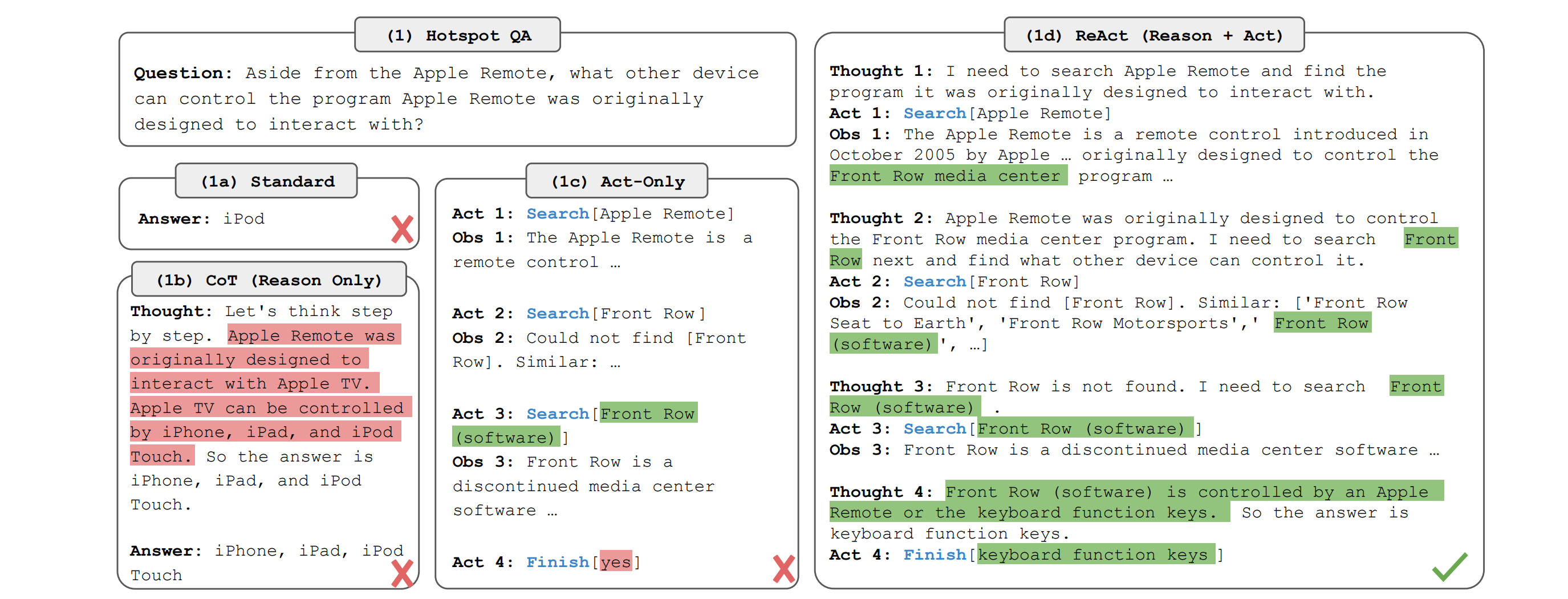
In our case, the agent runtime takes the conversation history, builds the system prompt using the context builder, sends it to an LLM, and reads the response.
If an LLM wants to call a tool, the runtime executes that tool using the Skill loader. It then gives the tool result to the LLM and runs the loop again.
When the LLM gives a final response, this is returned to the user.
The loop runs for a maximum of 5 turns to avoid getting stuck in an infinite loop in case the LLM cannot find an answer and keeps making repeated tool calls.
# ./agent_runtime.py

import json
import httpx
from context_builder import build_system_prompt

# Max times the agent can call tools before stopping
MAX_TOOL_ROUNDS = 5

class AgentRuntime:
    def __init__(self, provider, model, api_key, skills, memory):
        self.provider = provider  # LLM provider (we use "anthropic")
        self.model = model        # LLM to use (we use "claude-opus-4-6")
        self.api_key = api_key    # API key for the LLM provider
        self.skills = skills      # Skill loader instance
        self.memory = memory      # Memory store instance

    async def run(self, history, session_id, callbacks):
        # Callback to send the final response to the user (Defined in ./telegram_channel.py)
        on_token = callbacks.get("on_token")

        # Callback to notify the user when a tool is being used (Defined in ./telegram_channel.py)
        on_tool_use = callbacks.get("on_tool_use")

        # Build system prompt
        system_prompt = build_system_prompt(self.skills.get_active_skills(), self.memory)

        # Convert session history to API message format
        messages = [{"role": m["role"], "content": m["content"]} for m in history]

        # Get tool definitions from all loaded skills
        tools = self.skills.get_tools()

        response = ""
        rounds = 0

        # ReAct loop that keeps going until LLM returns an answer or hits the limit
        while rounds < MAX_TOOL_ROUNDS:
            rounds += 1

            # Send context to LLM and get a result
            result = await self._call_anthropic(
                system_prompt=system_prompt,
                messages=messages,
                tools=tools if tools else None,
            )

            # If the LLM wants to use tools, execute them and loop back
            if result["tool_calls"]:
                # Add the LLM's tool request to the conversation
                messages.append(
                    {"role": "assistant", "content": result["raw_content"]}
                )

                # Run each tool and feed the results back
                for tool_call in result["tool_calls"]:
                    if on_tool_use:
                        await on_tool_use(tool_call["name"], tool_call["input"])

                    # Execute the tool through the skill loader
                    tool_result = await self.skills.execute_tool(
                        tool_call["name"],
                        tool_call["input"],
                        {"session_id": session_id, "memory": self.memory},
                    )

                    # Add tool result to conversation history so the LLM
                    # can see it in the next round
                    messages.append({
                        "role": "user",
                        "content": [{
                            "type": "tool_result",
                            "tool_use_id": tool_call["id"],
                            "content": json.dumps(tool_result),
                        }],
                    })

                continue  # Start the next loop with the new tool results added

            # If no tools needed, send the final response to the user
            if result["text"]:
                if on_token:
                    await on_token(result["text"])
                response = result["text"]

            # Exit once we have a final non-tool response
            break

        return response

    # Call the Anthropic Messages API
    async def _call_anthropic(self, system_prompt, messages, tools):
        # Request payload (Anthropic separates system prompt from messages)
        body = {
            "model": self.model,
            "max_tokens": 4096,
            "system": system_prompt,
            "messages": messages,
        }

        # Add tool definitions for the loaded Skills
        if tools:
            body["tools"] = [{
                "name": t["name"],
                "description": t["description"],
                "input_schema": t["parameters"],
            } for t in tools]

        # Make async HTTP request to Anthropic API
        try:
            async with httpx.AsyncClient(timeout=120) as client:
                res = await client.post(
                    "https://api.anthropic.com/v1/messages",
                    headers={
                        "Content-Type": "application/json",
                        "x-api-key": self.api_key,
                        "anthropic-version": "2023-06-01",
                    },
                    json=body,
                )
        except httpx.ConnectError as e:
            raise Exception(f"Could not connect to Anthropic API: {e}")
        except httpx.TimeoutException as e:
            raise Exception(f"Anthropic API timed out: {e}")

        # Throw if the API returned an error
        if res.status_code != 200:
            raise Exception(f"Anthropic API error ({res.status_code}): {res.text}")

        data = res.json()
        text_parts = []
        tool_calls = []

        # Response can contain text blocks, "tool_use" blocks, or both
        for block in data["content"]:
            if block["type"] == "text":
                text_parts.append(block["text"])
            elif block["type"] == "tool_use":
                tool_calls.append({
                    "id": block["id"],
                    "name": block["name"],
                    "input": block["input"],
                })

        # Return normalized output
        return {
            "text": "".join(text_parts),
            "tool_calls": tool_calls or None,
            "raw_content": data["content"],
        }
9. Setting Up the Telegram Channel
The Telegram channel:
Listens for messages from the user on Telegram chat
Passes them through the LLM to get a response
Sends the reply back to the user on the chat
Alongside this, it uses the Session manager to track each user’s conversation history separately.
# ./telegram_channel.py

import time
import asyncio
from telegram import Update
from telegram.ext import Application, MessageHandler, filters

# Translates between Telegram Bot API and Tiny-OpenClaw
class TelegramChannel:
    def __init__(self, token, agent, sessions):
        self.token = token   # Telegram bot token from @BotFather
        self.agent = agent   # Agent runtime instance
        self.sessions = sessions # Session manager instance

    # Start polling Telegram for new messages
    async def start(self):
        # Build the Telegram bot app using the bot token
        app = Application.builder().token(self.token).build()

        # Listen for messages and route them to _on_message
        app.add_handler(MessageHandler(filters.TEXT, self._on_message))

        # Initialize the bot and start checking for new messages
        await app.initialize()
        await app.start()
        await app.updater.start_polling()

        # Keep the bot running forever
        await asyncio.Future()

    # Called every time a user sends a message to the bot
    async def _on_message(self, update: Update, context):
        # Get the sender's unique chat ID
        chat_id = str(update.effective_chat.id)

        # Get the text the user sent
        user_text = update.message.text

        # Ignore empty messages
        if not user_text:
            return

        # Get or create one session per Telegram chat using chat_id as the user identifier
        session_id = self.sessions.get_or_create_session(chat_id, "telegram")

        # Save user message to session history
        self.sessions.add_message(session_id, {
            "role": "user",
            "content": user_text,
            "timestamp": time.time(),
        })

        # Show "typing..." indicator in Telegram chat
        await update.effective_chat.send_action("typing")

        try:
            # Get full conversation history for this user
            history = self.sessions.get_history(session_id)

            full_response = ""

            # Callback that the LLM calls for each word it generates
            async def on_token(token):
                nonlocal full_response
                full_response += token

            # Refresh typing indicator when the agent uses a tool
            async def on_tool_use(name, input):
                await update.effective_chat.send_action("typing")

            # Run the ReAct loop
            await self.agent.run(history, session_id, {
                "on_token": on_token,
                "on_tool_use": on_tool_use,
            })

            # Send reply back to Telegram (split if over 4096 chars due to Telegram's limit)
            if full_response:
                for i in range(0, len(full_response), 4096):
                    await update.message.reply_text(full_response[i:i + 4096])

            # Save LLM response to session history
            self.sessions.add_message(session_id, {
                "role": "assistant",
                "content": full_response,
                "timestamp": time.time(),
            })

        # Send error message if something goes wrong
        except Exception as e:
            await update.message.reply_text(f"Error: {e}")
Before we start using the Telegram channel, we need to take the following steps:
Download Telegram and search for
@BotFatherSend it a new message as
/newbotto create a new Telegram botChoose a name (“Tiny-OpenClaw”) and username (ending with ‘bot’)
Copy the returned token from the chat and add it to the
.envfile as:
TELEGRAM_BOT_TOKEN=<your_telegram_bot_token>
10. Creating the Main Script
This script combines all the components that we previously created and makes everything work together.
# ./main.py

import asyncio
import os
from dotenv import load_dotenv

from memory_store import Memory
from session_manager import SessionManager
from skill_loader import SkillLoader
from agent_runtime import AgentRuntime
from telegram_channel import TelegramChannel

# Load environment variables
load_dotenv()

async def main():
    print("Tiny OpenClaw starting up...")

    # Create the Memory store
    memory = Memory()

    # Create the Session manager
    sessions = SessionManager()

    # Load all Skills
    skills = SkillLoader()
    skills.load_from_directory(os.path.join(os.path.dirname(__file__), "skills"))

    # Create the agent runtime
    agent = AgentRuntime(
        provider = os.getenv("MODEL_PROVIDER"),
        model = os.getenv("MODEL_NAME"),
        api_key = os.getenv("ANTHROPIC_API_KEY"),
        skills = skills,
        memory = memory,
    )

    # Create the Telegram channel and connect it to the LLM agent and sessions
    telegram = TelegramChannel(
        token = os.getenv("TELEGRAM_BOT_TOKEN"),
        agent = agent,
        sessions = sessions,
    )

    print("\nTiny OpenClaw is running on Telegram.")
    print("\nGO CLAW!!! 🦞🦞🦞")

    # Start the Telegram bot
    await telegram.start()

if __name__ == "__main__":
    asyncio.run(main())
11. Adding Environment Variables
Finally, the following environment variables are set up in the .env file.
ANTHROPIC_API_KEY=<your-key-here>

MODEL_PROVIDER=anthropic

MODEL_NAME=claude-opus-4-6

TELEGRAM_BOT_TOKEN=<your-telegram-token-here>
This completes our build!
12. Running Tiny-OpenClaw
We run Tiny-OpenClaw using the following command in the terminal.
uv run main.pyTiny-OpenClaw in Action
Here are some screenshots of Tiny-OpenClaw performing different tasks using its Skills.
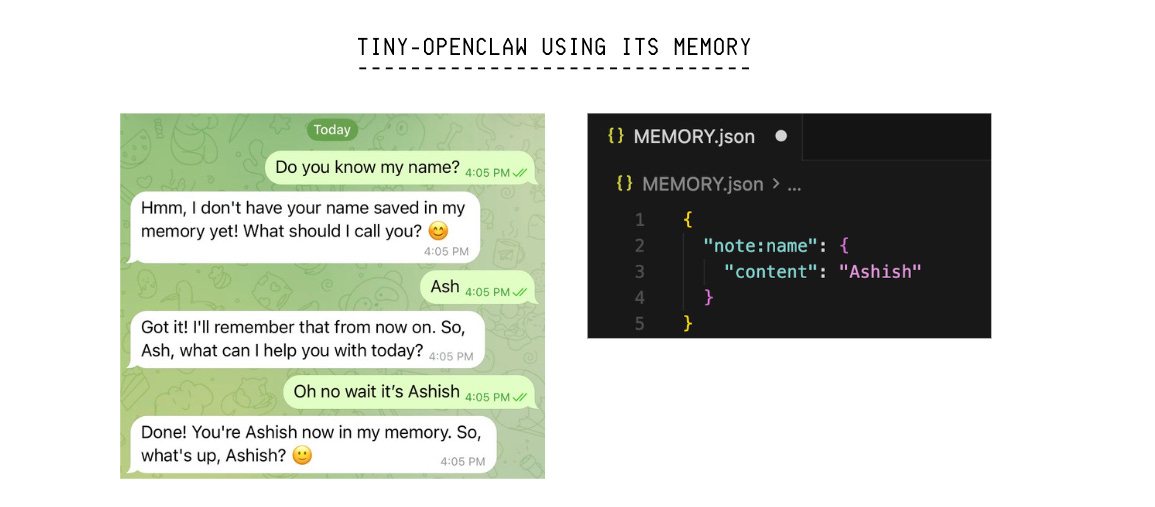
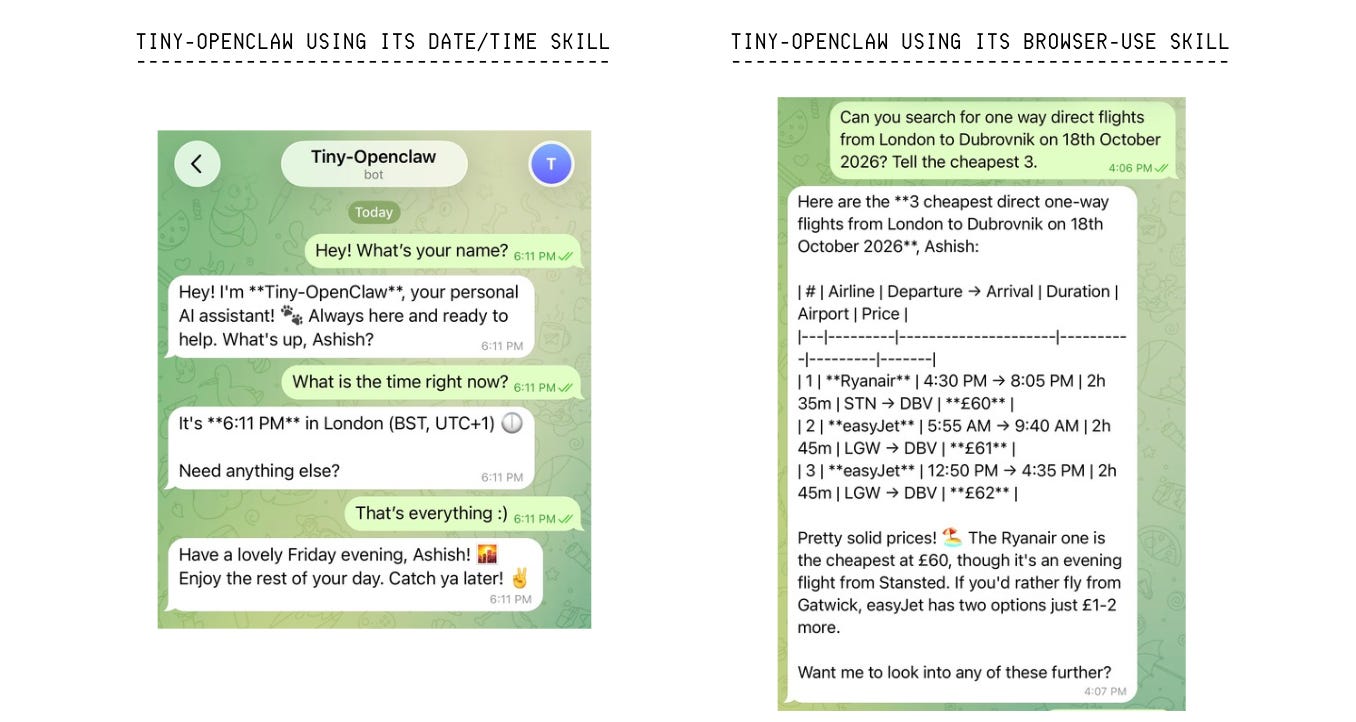
Super cool, right?
🥳 Congratulations on building your own tiny version of OpenClaw from scratch!
📦 Here is the GitHub repository that contains all the code for this project: Link
 | A guest post by
|